Installing the app
A/R is a web app: it opens in the browser and installs like a normal app, without going through an app store.
- Android: open app.ar.gxware.org in Chrome, then Menu → Install app.
- iPhone: open the site in Safari, tap Share → Add to Home Screen. Do install it: in a plain Safari tab, iOS may delete its data after a few days without use.
Tabs
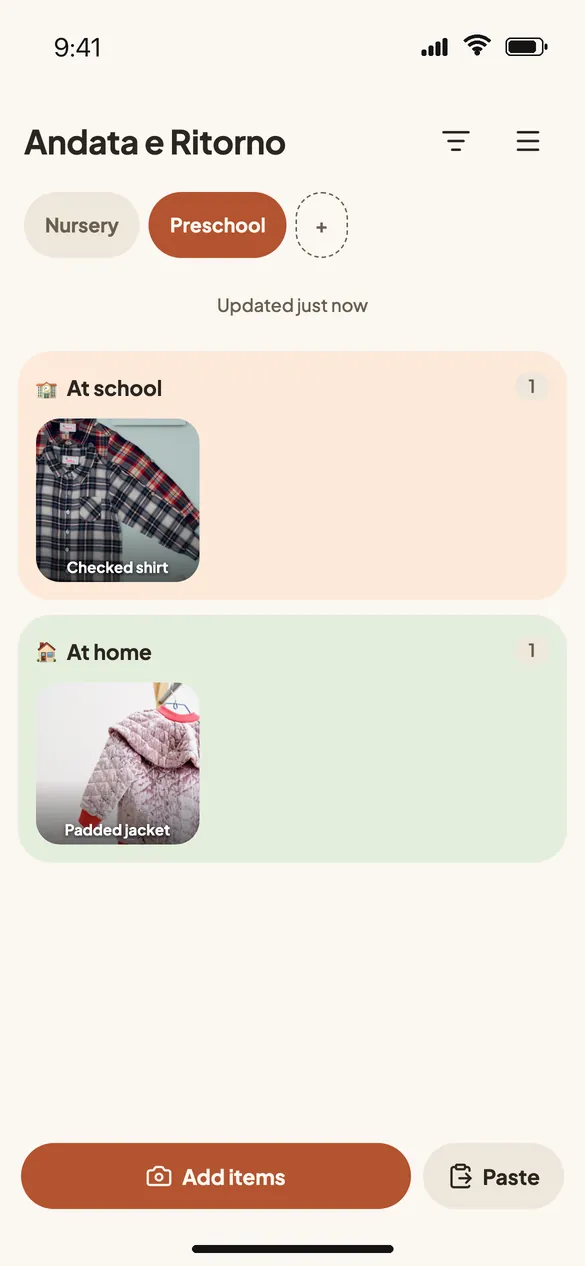
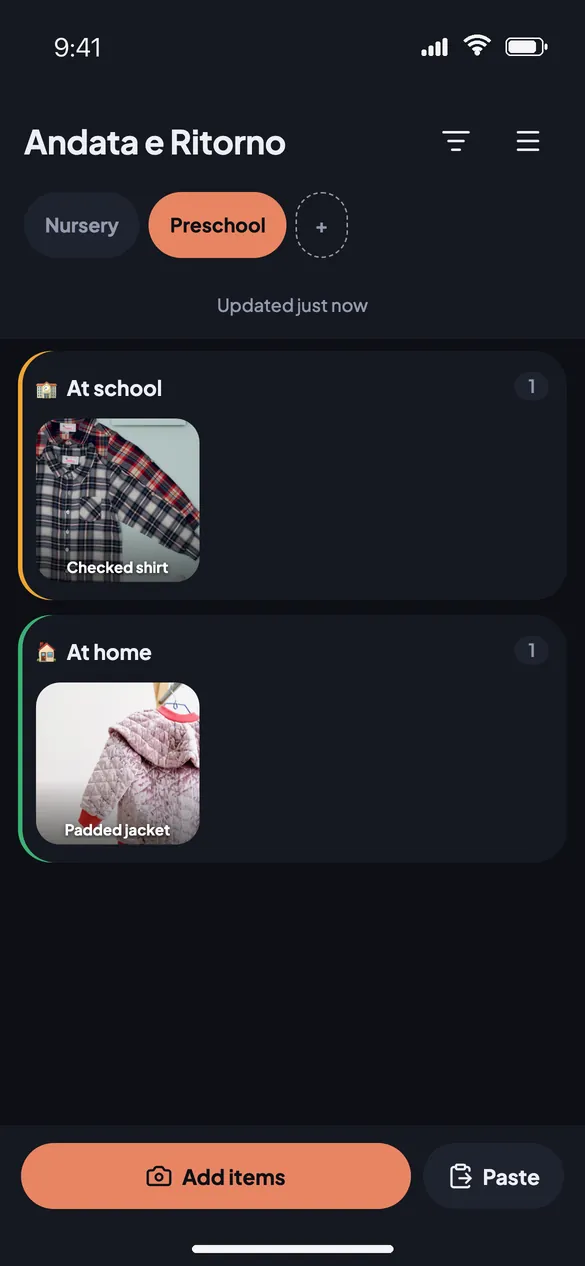
The tabs at the top keep wardrobes apart: one per child, or per school. Add tab creates a new one; Menu → Manage current tab renames, moves or deletes it.
Adding items
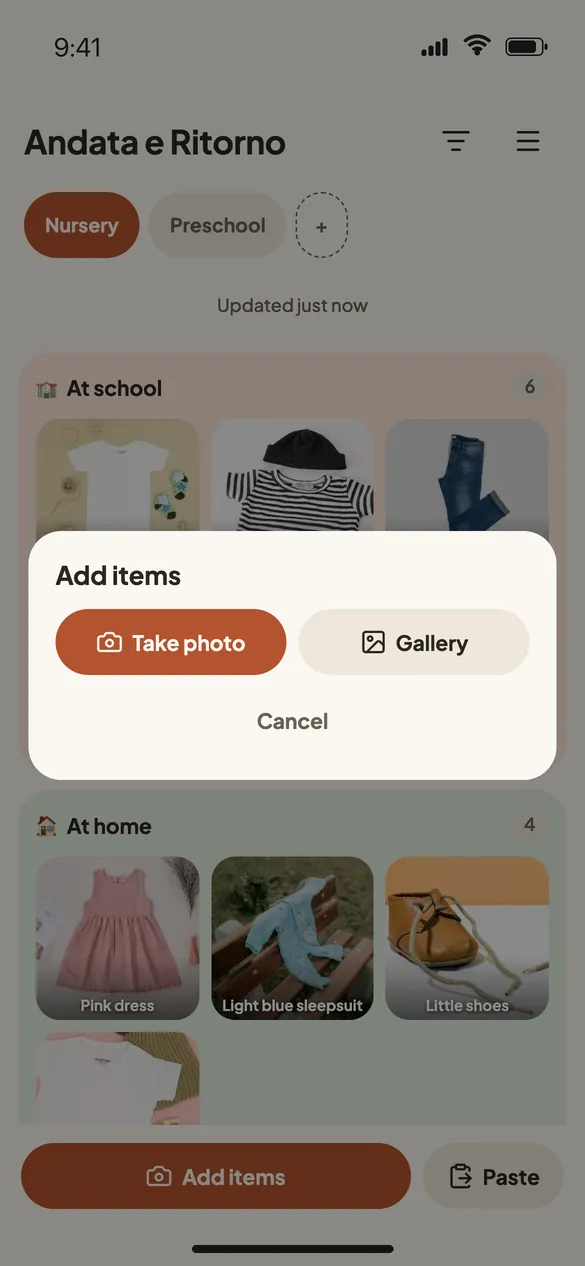
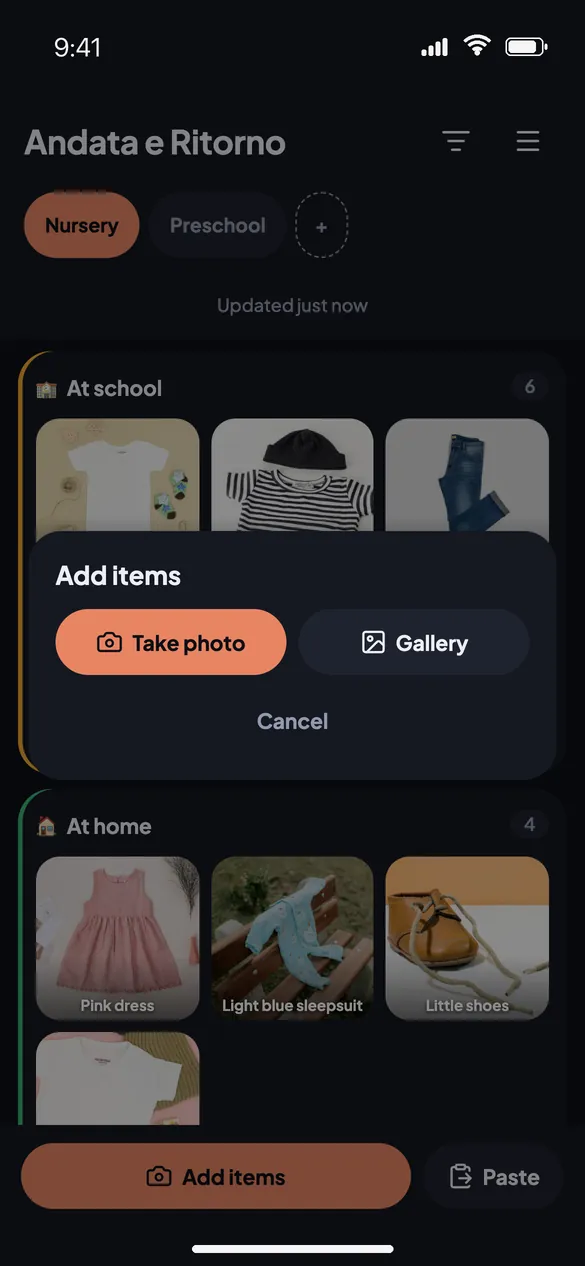
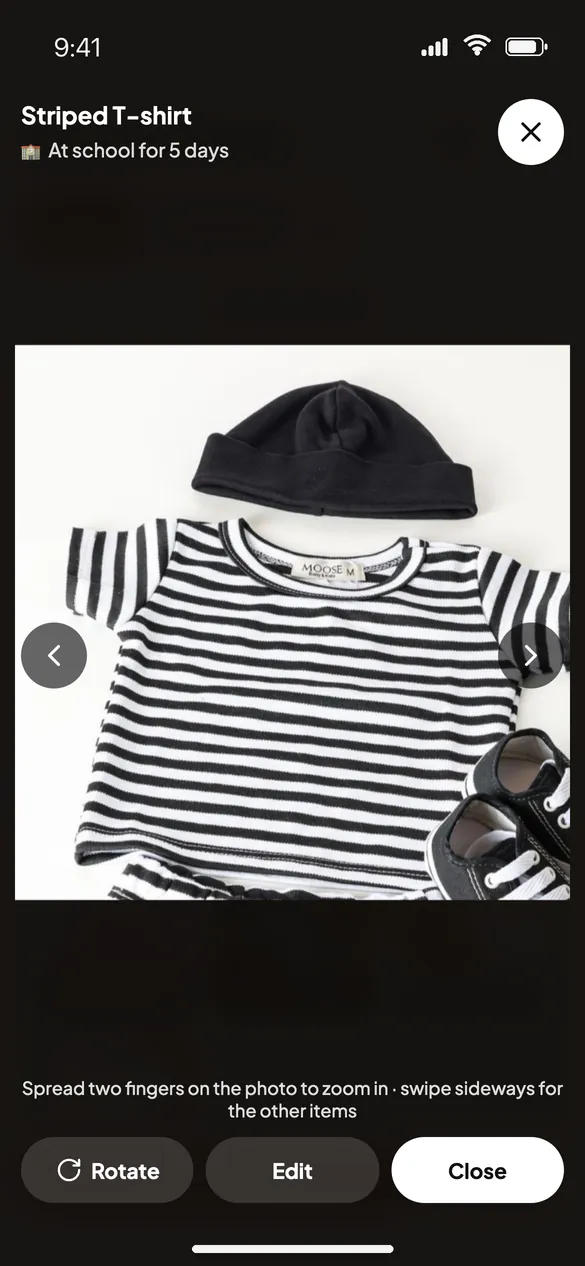
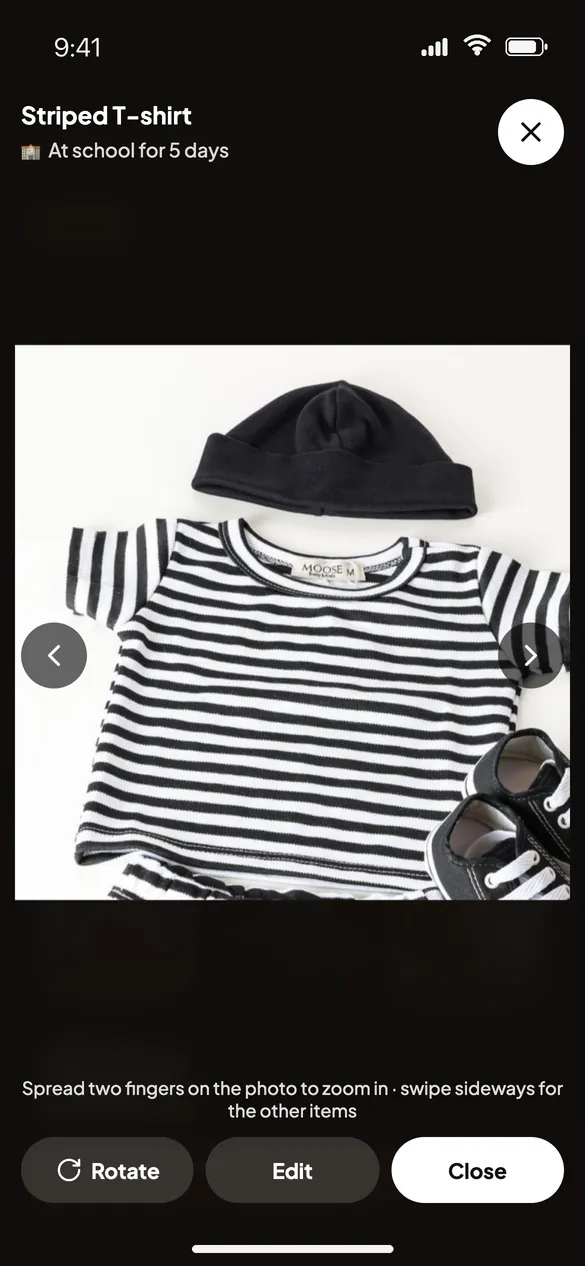
Tap Add items and choose Take photo or Gallery, or paste a photo from the clipboard. You can add a description and a category. Photos are resized to take little space. To fix something, open the item: description, tab, category and photo can change at any time, and the photo rotates with one tap.
Moving items
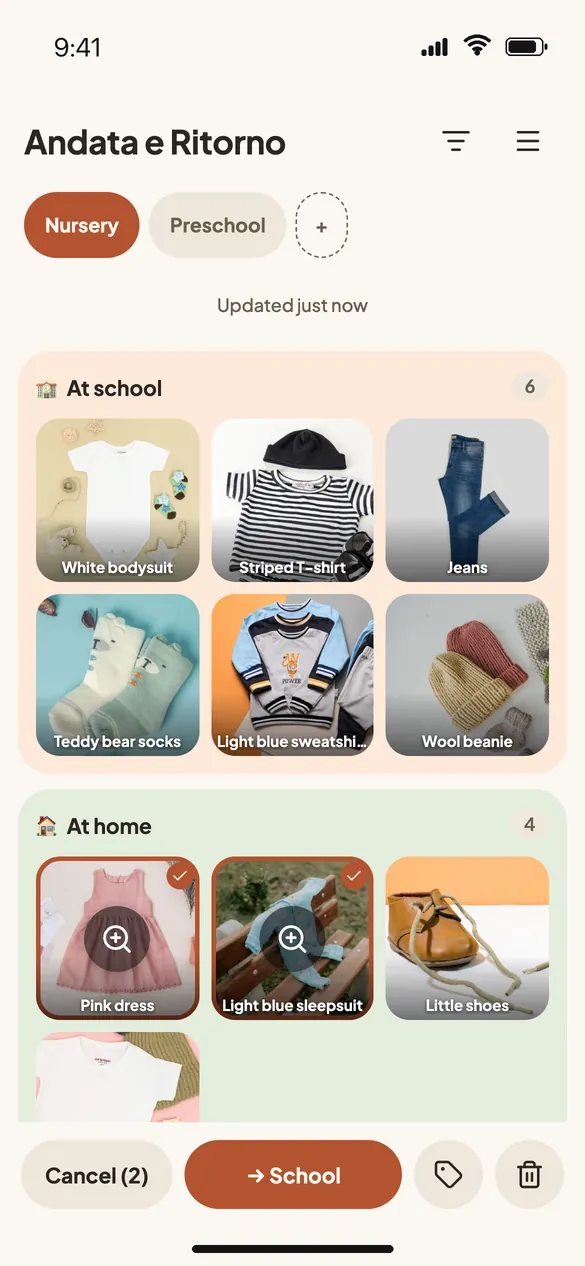
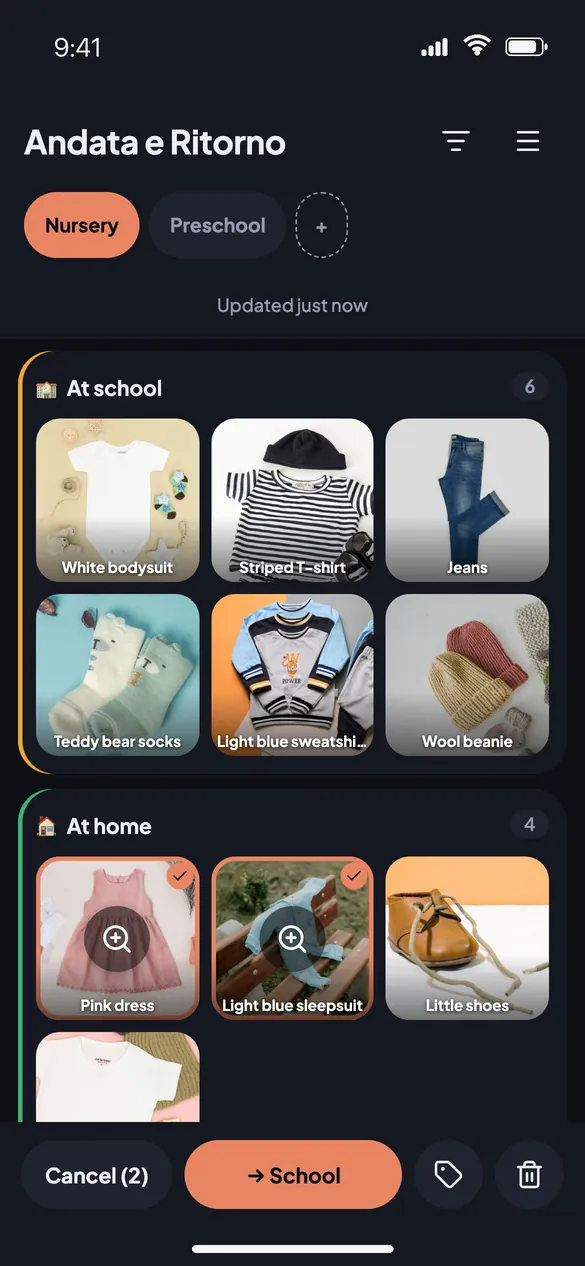
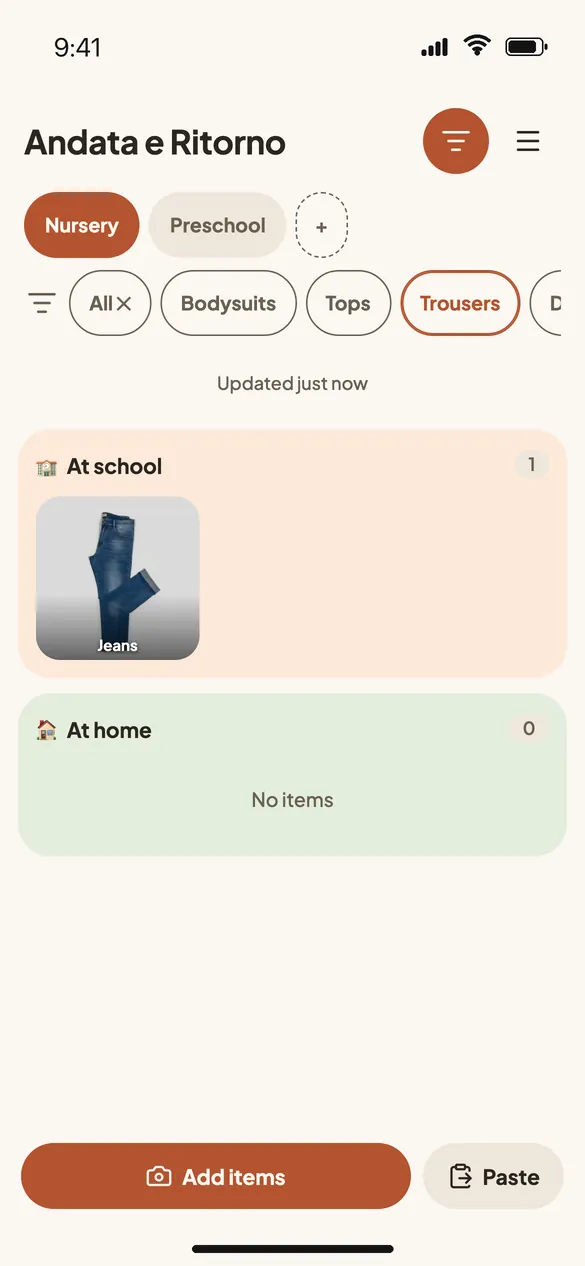
Every item is at school or at home. Tap items to select them (or a section's counter to take them all), then → School or → Home. A/R remembers since when each item has been where it is.
Categories and filters
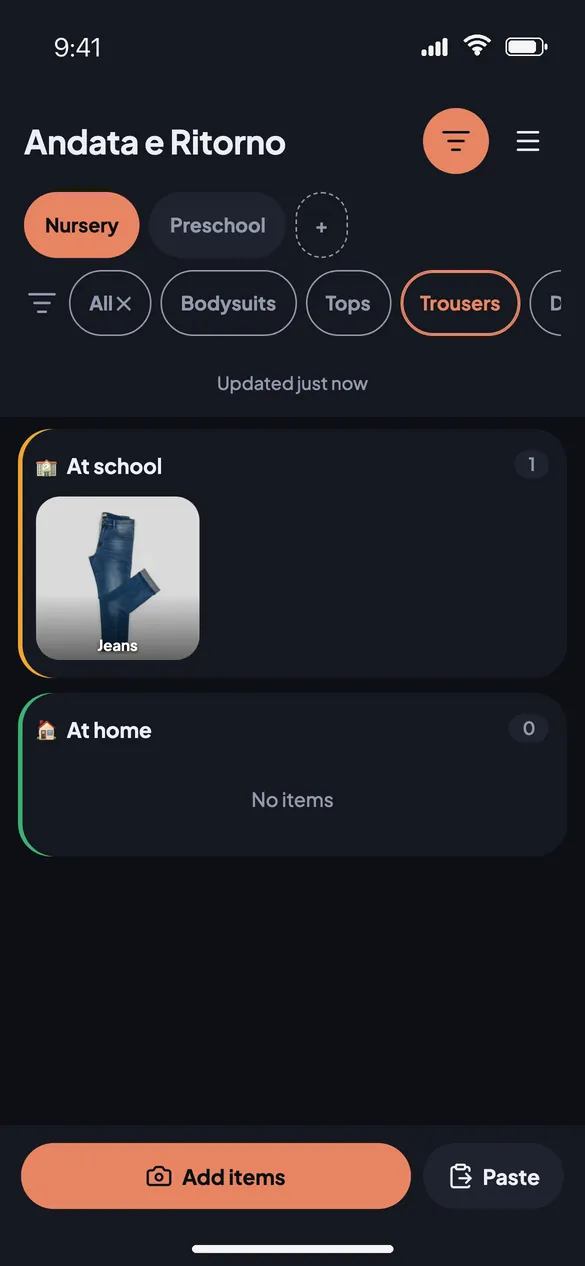
Categories (bodysuits, trousers, sweatshirts…) are optional. Manage them from Menu → Manage categories; the filters at the top show only the chosen categories, and All clears them.
Backups
Without a family the data lives only on the phone: lose it, or clear the browser's data, and it is gone. Menu → Export backup gives you a single .zip file with items and photos; A/R reads it back and checks it before saving. Import backup brings it to another phone, without creating duplicates. A/R reminds you when there are changes not yet exported.
Family sharing
With sharing, several phones see and edit the same wardrobe. One code covers 3 phones, and you can add more.
- Menu → Family sharing: buy, and get a code on the confirmation page and by email.
- Menu → I already have a code: paste the code, choose the family's and the phone's names.
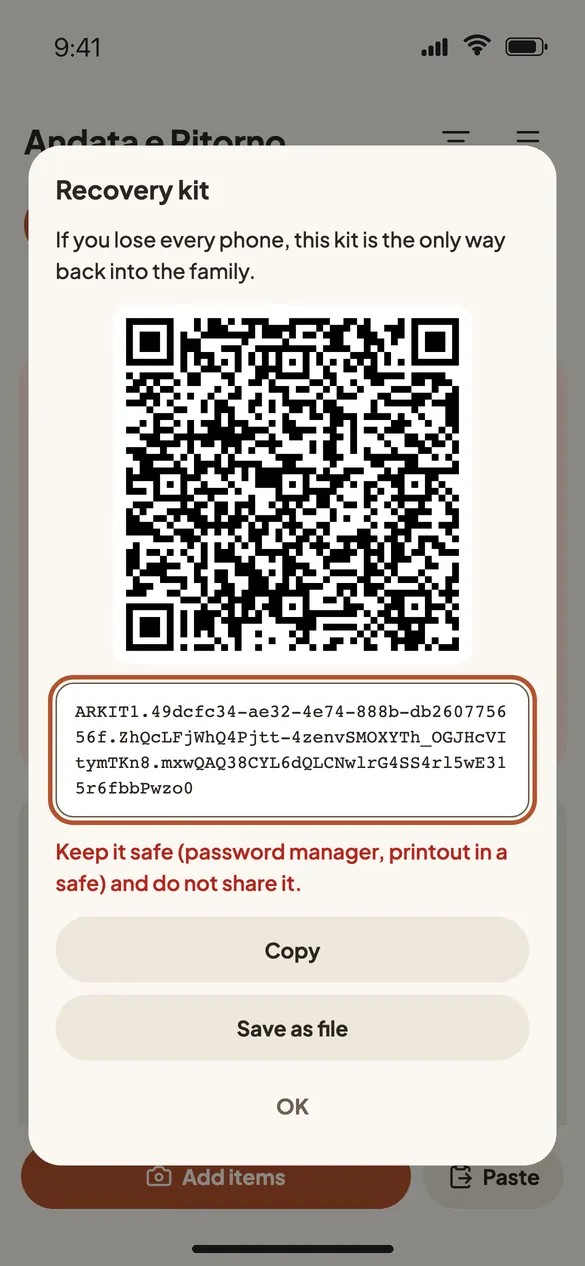
- A/R shows you the recovery kit at once: save it before doing anything else.
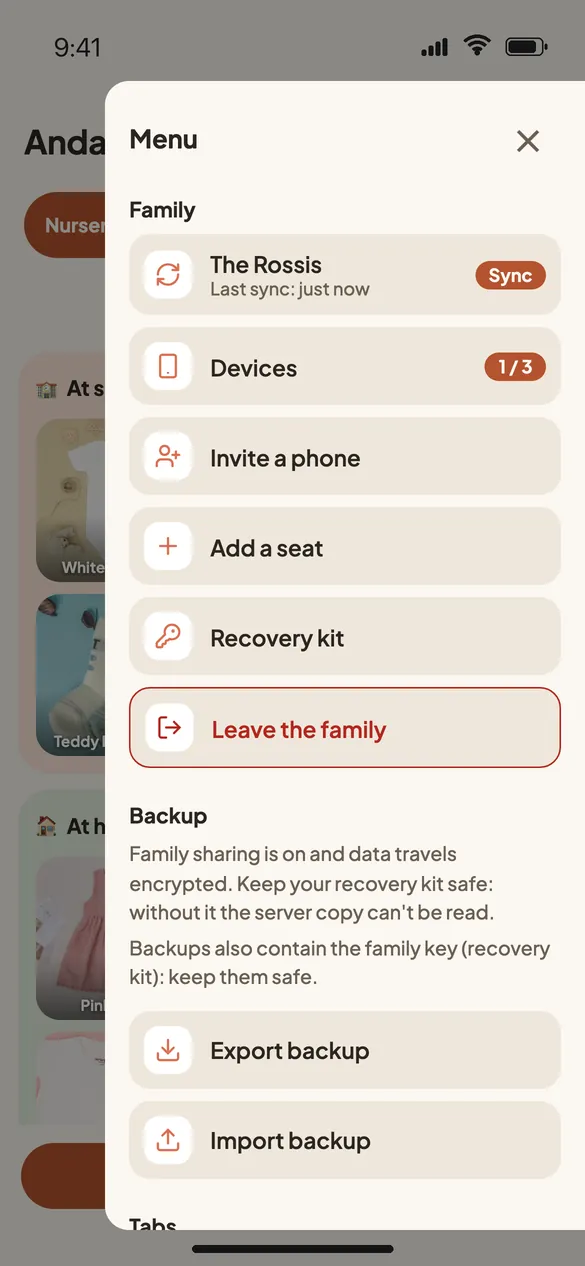
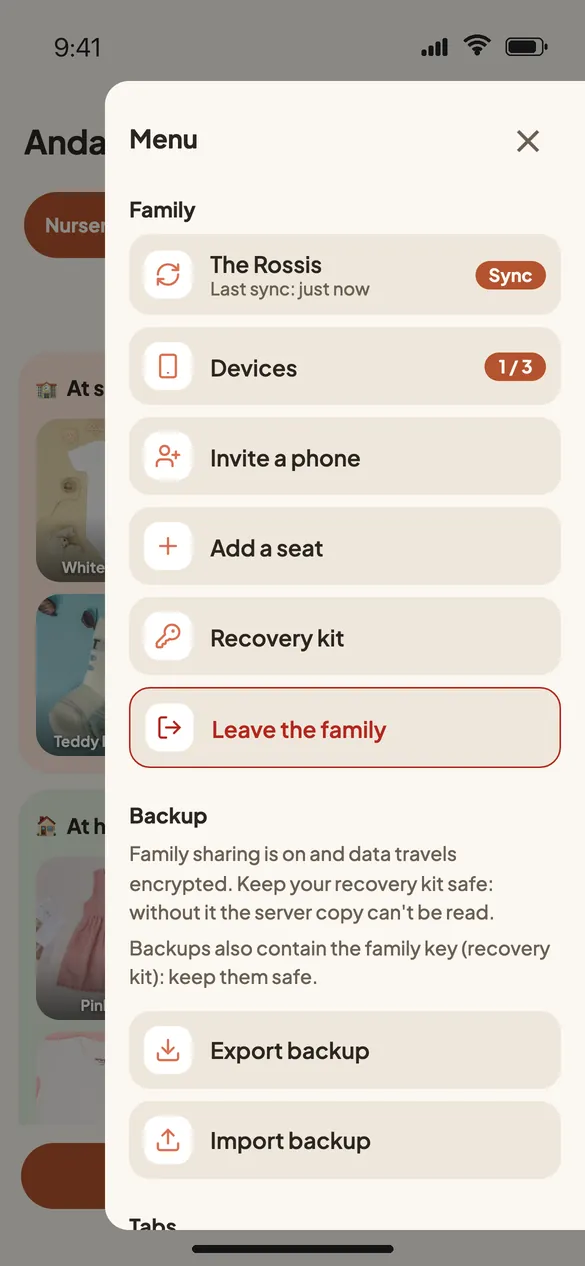
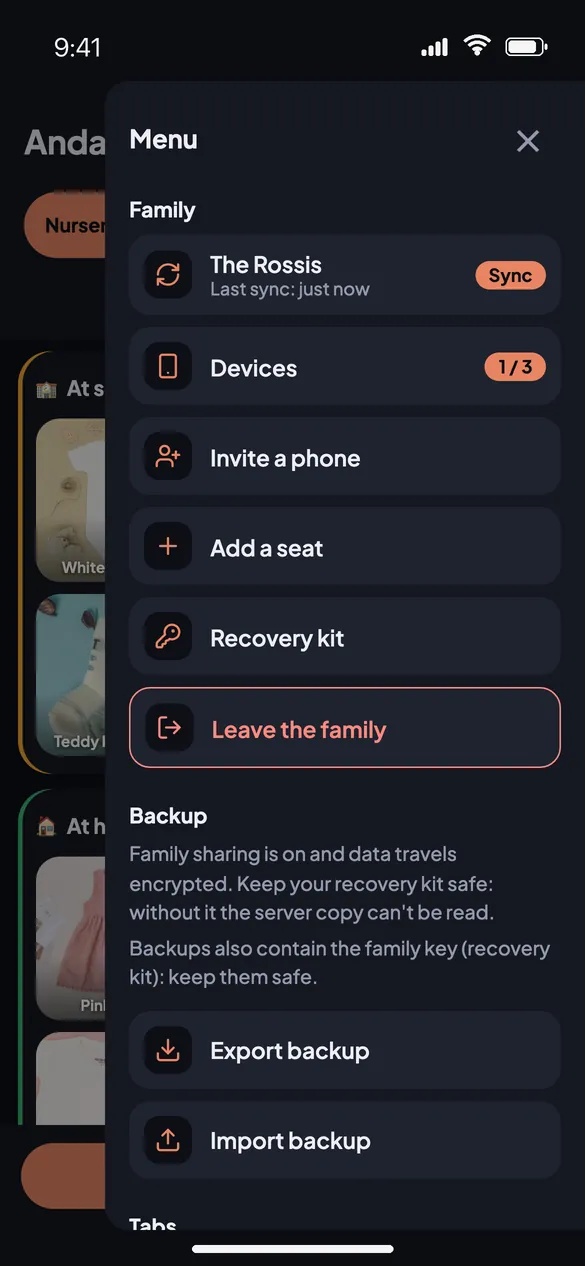
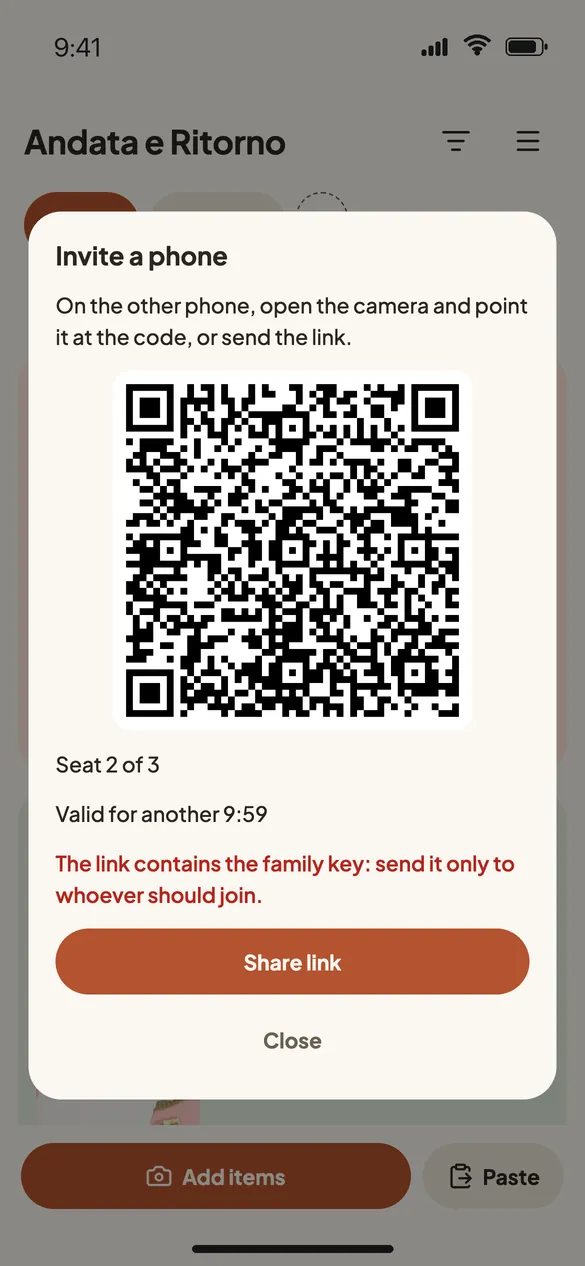
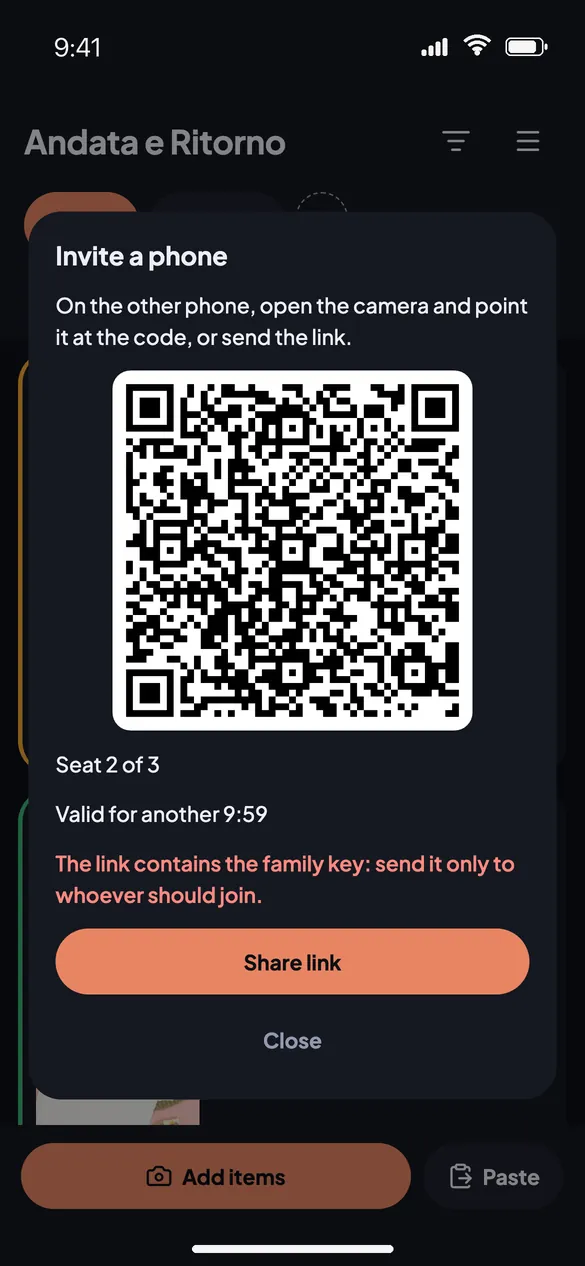
- Menu → Invite a phone: on the other phone scan the QR or open the link, then choose whether to merge the items it already has or use the family's.
Phones sync on their own when you open the app and while you use it; the line at the top says when it last happened. Items, photos and names are encrypted on the phone before they leave: the server cannot read them.
Recovery kit
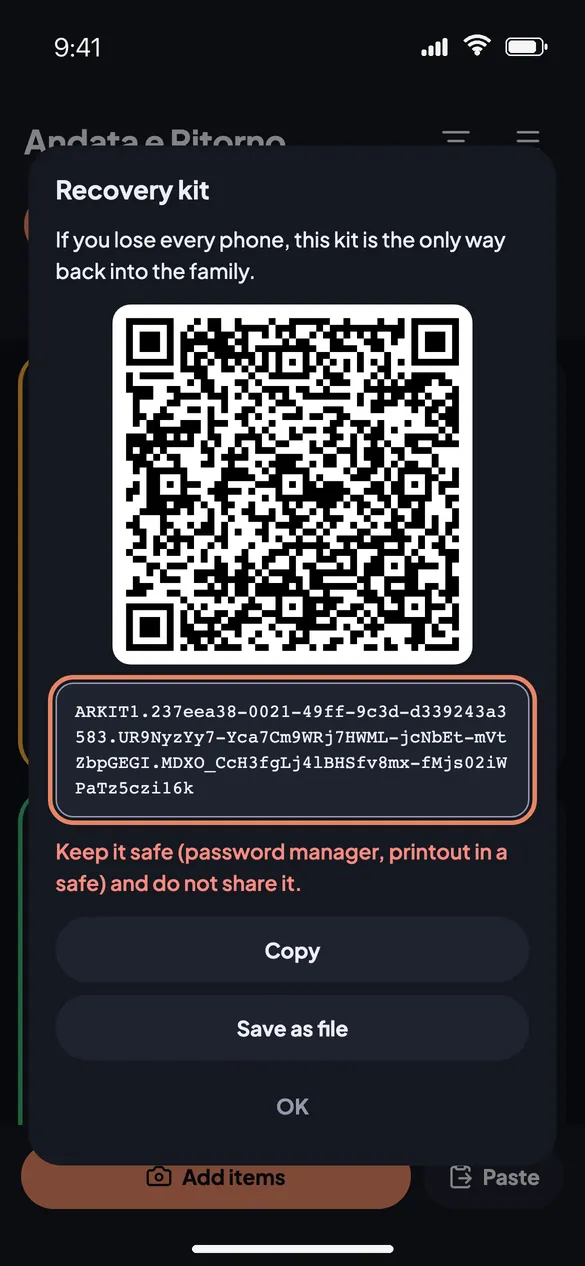
- Find it in Menu → Recovery kit, as text (it starts with
ARKIT1) and as a QR. - Keep it in a password manager or printed somewhere safe. Do not share it: whoever has it can join the family.
- To use it, on a new phone: Menu → Restore family and paste the kit (or scan its QR).
- Backups made in a family contain the kit too: keep them as safe as the kit itself.
More phones
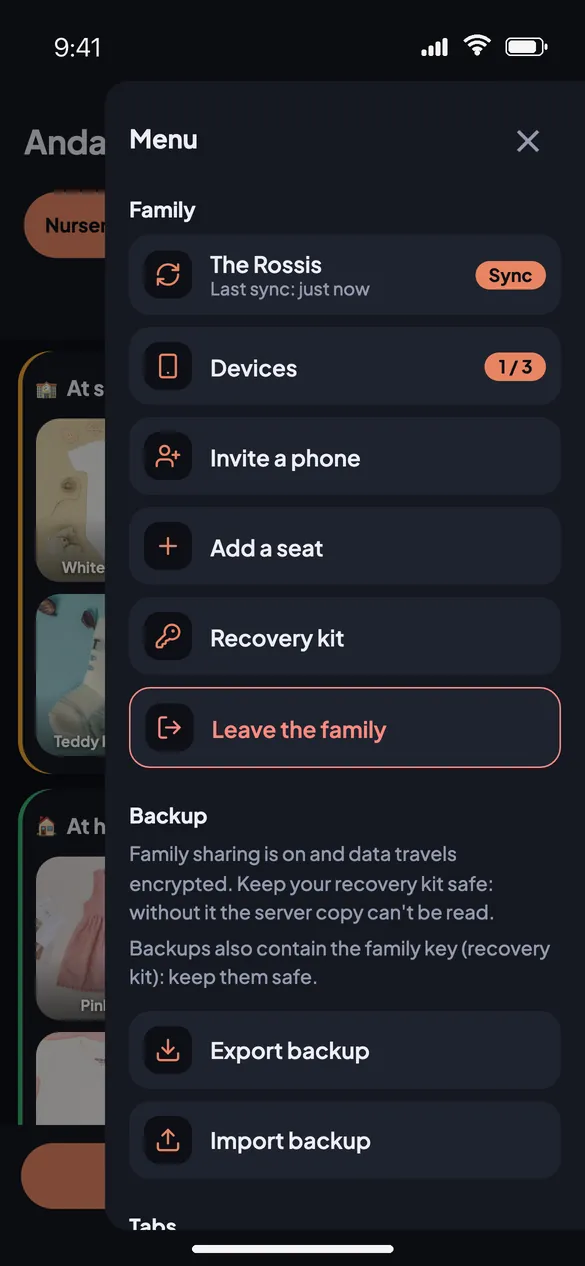
A family starts with 3 seats. Menu → Devices shows who is in and lets you remove a phone you no longer use, freeing its seat. Need one more phone? Menu → Add a seat: buy the seat and paste the code you get right there.
Changing phone
- You still have a family phone: invite the new one from Menu → Invite a phone, then remove the old one from Devices.
- No family phone is left: use the recovery kit (Menu → Restore family).
- You lost the kit too: Menu → Recover licence and enter the purchase email. You get a link to start over with a new family: the licence stays valid, but the old family's encrypted data can no longer be read. That is why an occasional backup is worth it.
Questions
Do I need an account?
No. Without a family your data goes through no server; in a family the phone identifies itself with a random token, with no email or password.
Does the app send anything if I use it on my own?
Only an anonymous count, at most once a week: the app version and two numbers in broad ranges (how many items, how many moved). No identifier, no content, no personal data: it only helps us understand how much A/R is used. The first time, the app tells you before sending anything; turn it off right there or from Menu → Anonymous statistics. Details in the privacy policy.
What happens if I leave the family?
The items stay on your phone. If yours was the family's last phone, the encrypted data on the server is deleted.
Does it work offline?
Yes. Changes made offline go out with the next sync.
Can I get a refund?
As long as you have not used the code, yes, within 14 days. Everything is in the terms.
Ideas and problems
Got an idea to make A/R better, or something does not work or is unclear? Say so: A/R grows with the reports of the people who use it.
- On GitHub: open a bug report or feature request.
- By email: write to hello@ar.gxware.org if you do not use GitHub or prefer to keep it private.
- Security problems: not in public. Use the private report or write by email.
When you report a problem never paste the recovery kit, the purchase code or invite links: the phone model and what happened are enough.